Best overall for server-dependent offices: a dedicated hybrid recovery appliance. Best for shared-file backups: a NAS with backup software. Best for an in-house IT team: a self-managed backup server. This 2026 guide compares backup appliance configurations by recovery needs, not hardware names; TechConnect LLC provides data backup/recovery and managed business IT support across North Carolina.
- Choose a dedicated hybrid backup appliance for small business server recovery, with local recovery and an offsite copy.
- Choose a NAS with backup software for shared-file protection, not as a substitute for a separate backup.
- Choose a self-managed backup server only when someone owns maintenance, alerts, and recovery testing.
- TechConnect LLC provides data backup/recovery and managed business IT support for North Carolina businesses.
Why this matters
A backup appliance is a device configured to store and manage backup copies. Some configurations also support restoring complete computers or running recovered systems temporarily. Those are different jobs, and your buying decision should separate them.
Your business needs more than evidence that a backup job finished. You need a usable copy of the right data, a way to restore it, and someone responsible for doing so. A file backup does not automatically recreate an application server, its settings, or its connections to other systems.
For a 2026 purchase, start with the failure you need to survive: a deleted document, a failed computer, an unavailable server, or the loss of your office equipment. The best backup appliance is the configuration that supports your required recovery process. Extra storage does not correct a missing recovery method.
What makes the best backup appliance for small business?
Use these criteria before comparing appliances. Each criterion answers a practical question you should settle before signing a service agreement or ordering hardware.
- Recovery coverage: Can you restore individual files, complete computers, and the applications your business actually uses? Require a clear list of protected systems and exclusions.
- Offsite protection: Where is the separate copy if the appliance is stolen, damaged, or unavailable? A device in the same office is not offsite protection.
- Backup isolation: Who can delete or change backups? Separate backup access from everyday employee access, and examine retention protections rather than accepting a security label.
- Restore verification: Can you demonstrate a usable recovery? Opening a restored file and starting a recovered application answer different questions.
- Maintenance ownership: Who checks failed jobs, capacity, updates, and hardware problems? A device without an owner leaves those tasks unresolved.
- Workload fit: Does the configuration cover office computers, servers, remote devices, and cloud-held business data where required? Do not assume a network appliance protects everything your employees use.
Treat these as acceptance criteria. If a supplier cannot explain how a configuration meets them, hold the purchase until the recovery process is clear.
Backup appliance configurations at a glance
These rankings compare configurations, not specific manufacturers. Features depend on the hardware, backup software, and service arrangement you select.
| Rank and configuration | Best for | Standout capability | Key limitation |
|---|---|---|---|
| 1. Dedicated hybrid recovery appliance | Offices that depend on local servers | Combines local recovery with an offsite backup destination | Full-system recovery and temporary operation require explicit support |
| 2. NAS with backup software | Offices primarily protecting shared files | Network-accessible storage for scheduled backup jobs | File storage alone does not establish a complete recovery plan |
| 3. Self-managed backup server | Businesses with an accountable IT administrator | Control over backup software, storage, and recovery workflows | Your team owns integration and maintenance |
| 4. Removable-drive backup station | A limited, clearly defined computer or dataset | Disconnected copies through a documented rotation process | Protection depends on consistent handling and offsite rotation |
1. Dedicated hybrid recovery appliance: best for server-dependent offices
A dedicated hybrid recovery appliance stores backups locally and sends a separate copy to an offsite destination. A business-continuity configuration also needs a defined way to recover systems, rather than simply retrieve documents. Confirm those functions in the proposed setup; the word hybrid does not establish them.
This is the default starting point when your office cannot work without a local server. Your 2026 evaluation should include the application, its data, permissions, and the computers that connect to it. Restoring the server is only part of restoring the business workflow.
Dedicated hybrid recovery appliance pros:
- Provides a local recovery source without first retrieving the entire backup over an internet connection.
- Combines onsite and offsite backup destinations in a planned workflow.
- Supports a single recovery design for server data and system backups when the selected software covers both.
- Fits businesses that want an IT provider to own backup administration.
Dedicated hybrid recovery appliance cons:
- Requires confirmation of supported systems and recovery features.
- Needs a separate plan when the office and appliance are both unavailable.
- Still requires capacity management, alerts, updates, and restore testing.
Ask for a demonstration using the type of server you need to protect. Distinguish restoring a system to replacement hardware from temporarily running it elsewhere, and establish who performs each task.
Best for: An office whose essential applications run on local servers.
Verdict: Buy when the proposed configuration demonstrates both local recovery and recovery without the original appliance.
2. NAS with backup software: best for shared-file protection
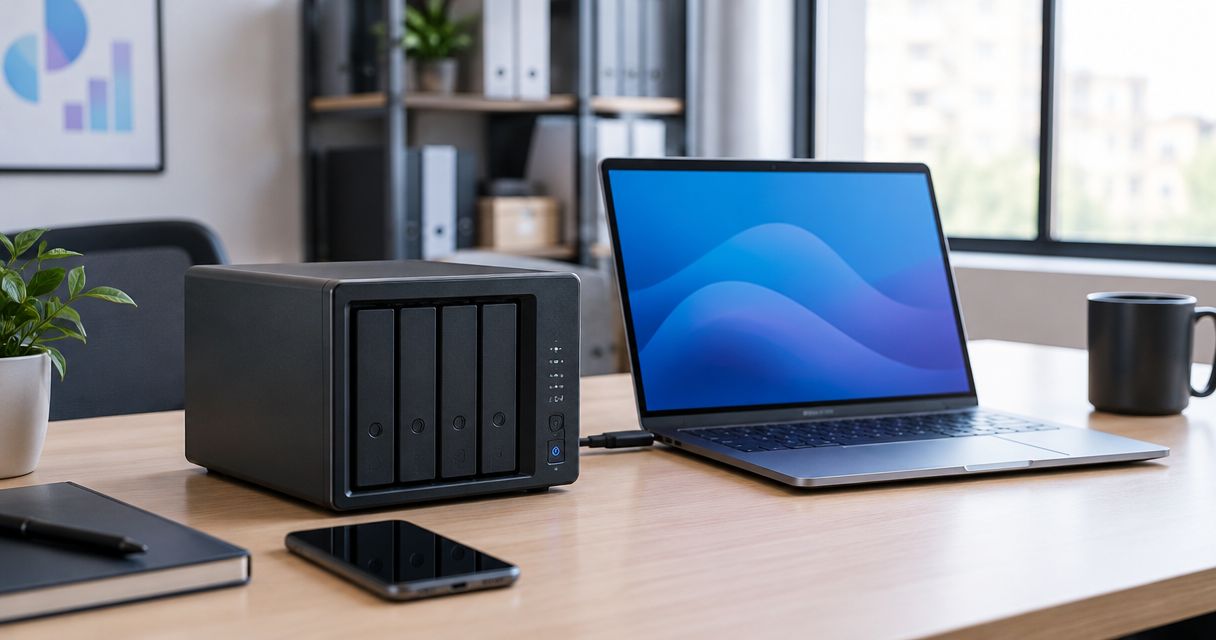
A network-attached storage device, or NAS, supplies storage that computers can reach over your network. Paired with suitable backup software, it can hold scheduled backups and retained versions. A shared folder by itself is storage, not a complete backup process.
Choose this configuration when the central task is recovering documents and other files. If the NAS also holds your working files, arrange a separate backup destination: keeping the working copy and its only backup on the same device leaves a common failure point.
NAS with backup software pros:
- Provides a central destination for network backup jobs.
- Supports file-focused recovery when the selected software retains the required versions.
- Allows you to separate backup storage from employees' individual computers.
- Fits a clearly documented office file-backup workflow.
NAS with backup software cons:
- Does not inherently provide complete application or server recovery.
- Remains exposed to office-wide loss without a separate offsite copy.
- Requires careful permissions, updates, and backup-software configuration.
RAID protects against certain drive failures; it is not a separate backup. Deletion, malware, or loss of the device still requires a recovery source outside the affected storage.
Before deployment, follow a defined process for connecting a NAS backup drive to your small business network. Include access restrictions and an actual restore, not just a successful network connection.
Best for: A file-centric office with a separate plan for offsite protection.
Verdict: Buy for file backups; skip as your sole server-continuity solution.
3. Self-managed backup server: best for an accountable IT team
A self-managed backup server runs backup software on hardware your business or IT administrator configures. It gives you control over the storage layout, backup destinations, and recovery procedures. That control also makes your administrator responsible for how the parts work together.
This configuration fits a business with someone who can maintain it and explain its recovery design. It is not the default recommendation for an owner who wants to install a box and stop thinking about backups.
Self-managed backup server pros:
- Lets your administrator select software around the systems you need to protect.
- Allows a documented mix of local and offsite destinations.
- Gives your team control over retention and recovery procedures.
- Supports a backup design that follows your existing IT operating practices.
Self-managed backup server cons:
- Your team owns hardware, software, and integration problems.
- Recovery knowledge becomes concentrated unless procedures are documented.
- Updates and configuration changes require attention beyond the initial installation.
For a 2026 deployment, require another authorized person to follow the recovery instructions. A plan that depends on an absent administrator is incomplete, even when the backup files are intact.
Separate the backup administrator's access from routine employee accounts. Document where recovery credentials are stored and how authorized staff obtain them during an outage.
Best for: A business with a named IT administrator and documented coverage during absences.
Verdict: Buy when maintenance and recovery ownership are assigned; skip when nobody can own them.
4. Removable-drive backup station: best for a narrow backup scope
A removable-drive backup station uses backup software and drives that can be disconnected and rotated. It is a simpler alternative to a network appliance for a limited computer or dataset. Its protection depends on a repeatable process, not merely the presence of an external drive.
Use this option when your recovery requirements are limited and someone can reliably manage the rotation. Do not choose it to cover an entire office unless you have mapped every system, destination, and recovery task.
Removable-drive backup station pros:
- Allows a backup copy to be physically disconnected after a completed job.
- Provides a local source for restoring the protected files or system.
- Supports an offsite copy when drives are deliberately rotated to another location.
Removable-drive backup station cons:
- Manual handling creates tasks that staff must perform consistently.
- Drives left connected do not provide the same isolation as disconnected copies.
- Missing or damaged media interrupts the recovery process.
Assign responsibility for rotation and record which copy is offsite. Test recovery from that copy, rather than relying only on the drive beside the computer.
Best for: A limited backup requirement with a dependable person managing the process.
Verdict: Buy for a documented narrow scope; skip for unattended office-wide protection.
Turn the appliance choice into a recovery plan
Before deploying a backup appliance in 2026, write a short recovery plan. TechConnect LLC provides data backup/recovery and managed business IT support; those service categories are relevant when your North Carolina business needs help beyond selecting hardware.
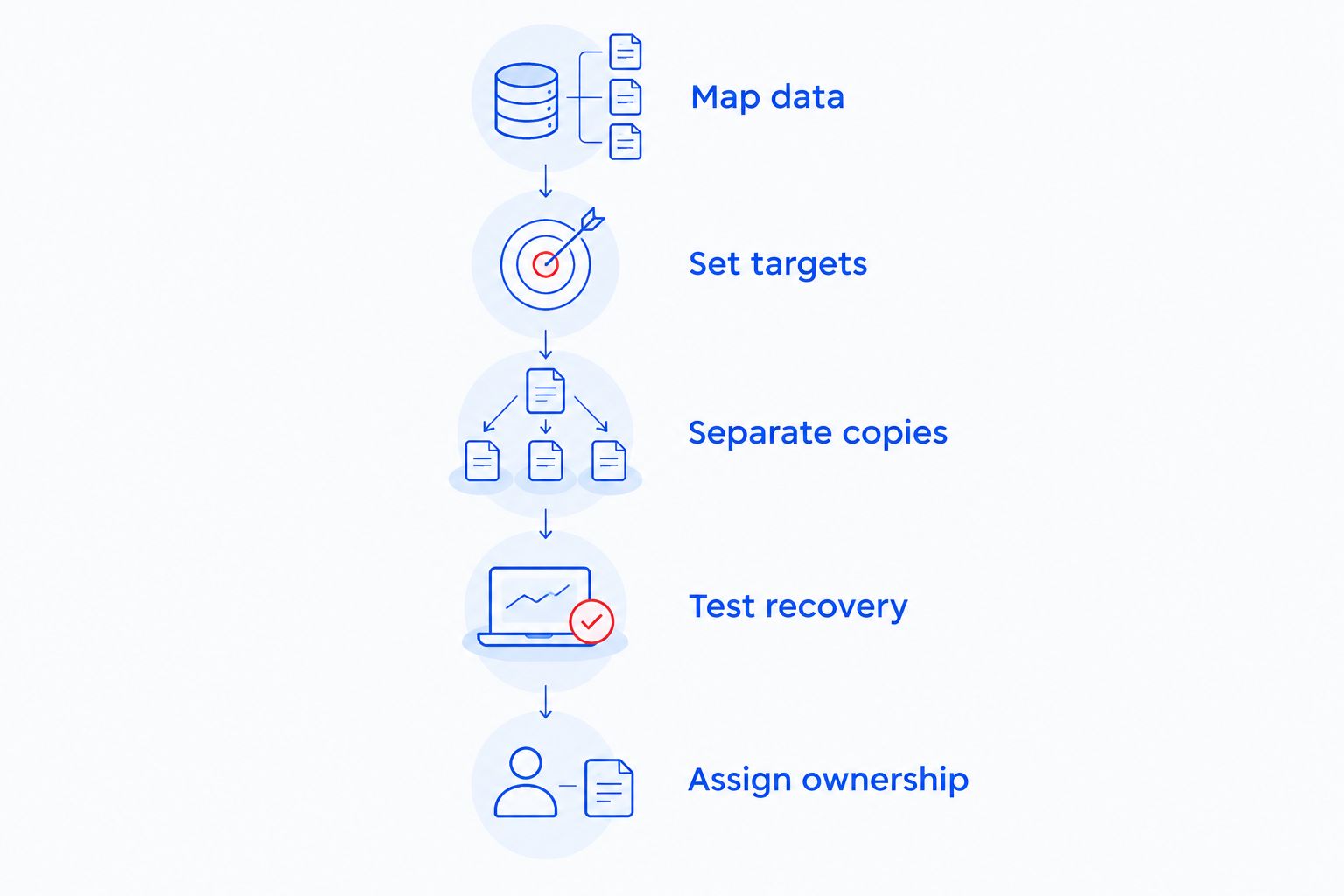
Use this sequence to define what a provider or administrator must deliver:
- Map data: Identify business files, application data, computer settings, and information stored outside the office. Record what the proposed appliance does not protect.
- Set targets: Define your recovery point objective, meaning acceptable data loss, and recovery time objective, meaning acceptable downtime. Use business requirements, not a supplier's generic promise.
- Separate copies: Apply the established 3-2-1 backup principle: 3 copies of data, across 2 different media types, with 1 copy offsite. Check the actual destinations rather than counting folders on the same device.
- Test recovery: Restore representative files and essential applications in an appropriate test environment. Record what worked, what failed, and who performed the recovery.
- Assign ownership: Name the person who receives alerts, resolves failed jobs, and maintains the recovery instructions. Include coverage when that person is unavailable.
A backup schedule and a retention policy answer different questions. The schedule determines when copies are created; retention determines how far back you can recover. Specify both, especially when an unwanted change is discovered after later backups have already run.
Also document what happens when the appliance itself fails. Identify the separate recovery copy, the equipment needed to use it, and the credentials required to access it. Do not approve a plan that needs the failed device to recover its own backup.
Discuss your business backup needs
TechConnect LLC provides data backup/recovery and managed business IT support across North Carolina.
How the configurations are ranked
The ranking prioritizes recovery coverage, offsite protection, backup isolation, restore verification, maintenance ownership, and workload fit. Dedicated hybrid recovery comes first for server-dependent offices because its intended design addresses both local recovery and an offsite copy. It still needs verification before purchase.
NAS backup ranks next for a different requirement: shared-file protection. A self-managed server fits businesses that can own the technical work, while removable drives fit a narrower scope with dependable handling.
This is a configuration-level buying guide, not a benchmark of individual devices. No position establishes a manufacturer's performance, compatibility, or recovery time. Match the configuration to your business first, then evaluate the specific proposal against the same criteria.
Which backup appliance should you choose?
Choose a dedicated hybrid recovery appliance if your business depends on local servers. Require a demonstration of the essential application working after recovery, plus a documented offsite recovery path. Do not accept a file-restore demonstration as proof of complete server recovery.
Choose a NAS with backup software when recovering shared documents is the main requirement. Choose a self-managed backup server when an accountable IT team needs control. Choose removable-drive backup only when the scope and handling process are clear.
TechConnect LLC is a service option for North Carolina businesses seeking data backup/recovery and managed IT support, not an appliance manufacturer. Separate the hardware decision from the service decision: your provider's responsibilities should remain explicit regardless of the device installed.
FAQ
What's the best backup appliance for small business in 2026?
A dedicated hybrid recovery appliance is the best starting point for a small business that depends on local servers. Confirm complete-system recovery, an offsite copy, and a recovery process that works without the original appliance.
Is a NAS the same as a backup appliance?
A NAS is network-accessible storage; it becomes part of a backup configuration when suitable software and recovery procedures are added. A shared folder alone does not establish retained backup versions or complete-system recovery.
Does RAID replace a business backup?
No, RAID does not replace a business backup. It addresses certain drive failures, while a separate backup is needed for recovery from deletion, malware, or loss of the storage device.
Can a backup appliance protect cloud-held business data?
A backup appliance protects cloud-held data only when its configured backup software explicitly supports that workload. Confirm the covered services, retained data, and restore process rather than assuming network backups include cloud accounts.
Can a backup appliance restore files after ransomware?
A backup appliance can support ransomware recovery when usable, unaffected backups remain accessible. Recovery also requires containment of the incident and verification that the restored files and systems are suitable to use.
Do I still need an offsite backup with a local appliance?
Yes, a local appliance needs a separate offsite recovery copy to address loss of the office equipment. Copies stored only in the same office share that location's risks.
Should I choose managed backup or maintain the appliance myself?
Choose managed backup when your business needs an external provider to own defined backup tasks; maintain it yourself only when an accountable administrator can perform them. TechConnect LLC provides data backup/recovery and managed business IT support across North Carolina.
One last thing
For your 2026 purchase, ask this before asking about storage capacity: Can an authorized person restore essential business data without the original computer or appliance? Make that a demonstration requirement, not a yes-or-no sales question.
Have the responsible person follow the written instructions using the separate recovery copy. Confirm access to credentials and the required replacement environment. This checks whether the backup plan survives the loss of the equipment it was designed to protect.