Yes. Data recovery can work on a hard drive that will not spin, but the correct method depends on whether the problem is power, the external case, the drive’s electronics, or an internal mechanical failure. In 2026, the safest response is to stop powering the drive on and off, preserve every related part, and have the failure identified before anyone opens or alters it. TechConnect LLC provides data backup and recovery for homes and businesses across North Carolina.
- A hard drive that will not spin may still be recoverable.
- Stop repeated power attempts, tapping, freezing, opening, and do-it-yourself board swaps.
- Rule out the cable, power supply, port, and external enclosure without stressing the drive.
- Internal motor or head failures require controlled recovery work, not normal computer repair.
- TechConnect LLC helps North Carolina customers protect and recover important data.
Why this matters in 2026
A silent hard drive can make years of photos, documents, accounting records, customer files, or project work appear to vanish at once. The files may still exist on the internal platters even when the drive cannot start normally.
What happens next matters. Every additional power attempt asks damaged parts to move again. If the read heads are stuck or damaged, those attempts can turn a recoverable mechanical problem into scratched media and permanent loss.
The phrase “won’t spin” also gets used for several different symptoms. A drive may truly be motionless, it may start and stop too quickly to notice, or it may spin normally while the computer fails to recognize it. Recovery begins by separating those cases without making the damage worse.
Can data recovery work on a hard drive that will not spin?
Yes. A non-spinning hard disk drive can still contain readable data because the information is stored magnetically on internal platters. The challenge is getting the drive stable enough for a technician to make a sector-by-sector copy without relying on the damaged original for normal daily use.
A successful 2026 recovery process does not “repair the drive” and return it to service. It stabilizes the source long enough to copy what can be read onto healthy storage. The recovered files are then checked from the copy, not from the failing drive.
The likely path depends on the cause:
- No power reaches the drive: inspect the cable, adapter, port, power supply, or external enclosure.
- The electronics fail: diagnose the control board and its drive-specific information.
- The motor cannot start: controlled mechanical work may be required.
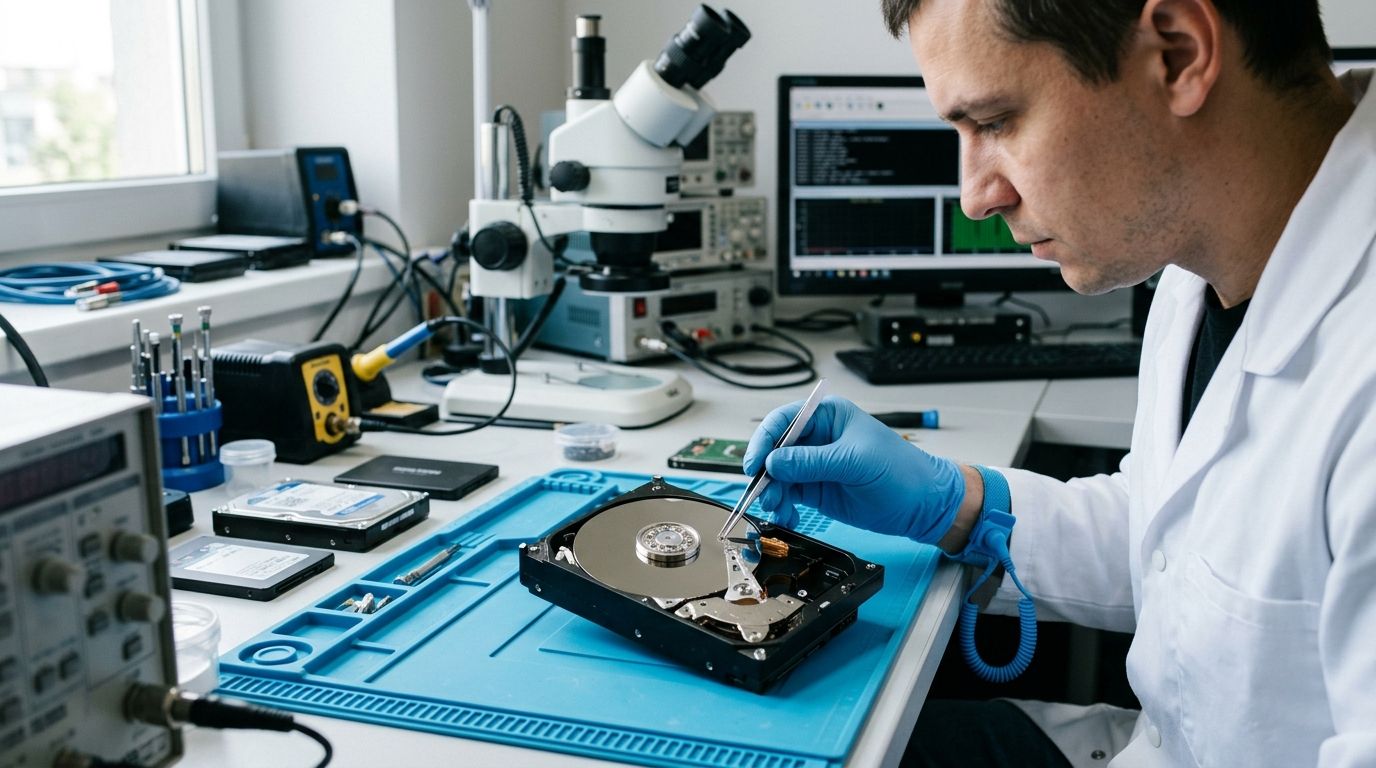
- The read heads are stuck or damaged: the drive may need internal recovery work in a clean environment.
- The drive spins but is not detected: the problem may involve electronics, firmware, connection, or damaged file structures rather than the motor.
First, confirm what “not spinning” means
A traditional hard disk drive contains moving parts. When powered, it normally produces a gentle vibration and a smooth spinning sound. A solid-state drive has no motor and never spins, so a silent SSD needs a different diagnosis.
Do not hold a suspected failing drive to your ear while it is repeatedly powered. Instead, note what happened during the last normal attempt:
- Was there any vibration?
- Did the drive start, click, and stop?
- Did the computer detect its model or capacity?
- Did the failure begin after a drop, power surge, liquid spill, or enclosure change?
- Is the drive internal, external, or connected through a docking station?
- Was encryption enabled?
Write these details down once. They help the technician choose a safer test path and avoid repeating steps that already caused trouble.
Stop these actions immediately
Do not keep restarting the drive
Repeated power cycles do not clear a mechanical obstruction. They repeat the same failed movement and can worsen internal damage. One careful diagnostic attempt is different from turning the system on and off throughout the day.
Do not tap, shake, or strike it
Old advice about tapping a drive comes from hardware generations and failure patterns that do not justify the risk today. Modern drives have very small internal tolerances. A shock can damage the heads or platter surfaces even when the case looks unchanged.
Do not put it in a freezer
Freezing a drive can introduce condensation and contamination. Temperature changes can also distort already delicate parts. In 2026, this remains one of the fastest ways to turn a controlled recovery into a more difficult one.
Do not open the metal drive casing
The inside of a hard drive is not meant for normal room air. Dust and fingerprints can interfere with the tiny space between the heads and platter surfaces. Removing the outer computer cover or an external plastic enclosure is not the same as opening the sealed metal drive itself.
Do not swap the electronics board casually
Two drives with the same label can still carry drive-specific calibration information. A board swap based only on model number may fail or damage components. Electronics diagnosis belongs with someone who can preserve or transfer the unique information required by that drive.
Do not run repair software on an unstable drive
File-repair and scan tools are useful only when the hardware can read consistently. On a drive that starts and stops, disappears, clicks, or freezes the computer, a deep scan can force hours of extra activity. The first goal is imaging the device, not repairing its file system in place.
Safe checks before professional recovery
If the drive has not been dropped, opened, exposed to liquid, or made unusual mechanical sounds, a few external checks can rule out a connection problem. Stop if any test creates clicking, repeated spin attempts, heat, smoke, or a burning smell.
Check the power source
For a desktop or external drive, inspect the power adapter and connection for looseness or visible damage. Use only a compatible power source. A connector that physically fits is not proof that its voltage and wiring are correct.
Check the data cable and port
A damaged USB or data cable can make a healthy drive appear missing even though it spins. Try one known-good compatible cable and one known-good port. Avoid cycling through many computers and adapters; the goal is a controlled check, not repeated stress.
Separate the enclosure from the drive problem
An external drive includes the storage device plus a case, cable, and small bridge board. Any of those external parts can fail. A technician can determine whether the actual drive is healthy before treating the problem as internal damage.
Do not remove the drive from an enclosure if doing so would risk physical damage, break a needed connector, or separate it from encryption hardware. Some external systems depend on the original bridge board to interpret the data.
Check whether the computer sees the device
The operating system’s disk management screen may show a drive that does not appear in normal file browsing. Do not initialize, format, or create a new volume when prompted. Those actions change the source and can overwrite information needed to reconstruct the files.
In 2026, screenshots of the device name, capacity, error message, and disk-management view can help a recovery provider triage the issue without another power attempt.
What causes a hard drive not to spin?
Failed power or connection
The simplest cause is outside the drive: a bad cable, adapter, port, desktop power connector, or external enclosure. This is the least invasive path because the storage mechanism may still be healthy.
Damaged electronics
A surge, failing power supply, incorrect adapter, or component failure can prevent the motor from receiving proper control. Visible scorching or a burnt smell is a reason to disconnect the drive immediately.
Seized or damaged motor
The motor that spins the platters can fail mechanically or electrically. This is not corrected with software. A recovery specialist may need compatible donor parts and controlled internal work to create a readable copy.
Stuck or damaged read heads
The heads read data while floating extremely close to the platter surfaces. A drop or sudden power loss can leave them in the wrong position or damage the assembly. Clicking, scraping, or repeated start-stop behavior can point to this class of problem.
Internal damage after impact or liquid
A dropped drive can suffer hidden damage even when the case has no dent. Liquid can affect the electronics and later cause corrosion. Do not dry a liquid-exposed drive with heat or test it before inspection.
How professional recovery handles a non-spinning drive
1. Record the history
The provider starts with the device type, symptoms, events before failure, previous recovery attempts, encryption status, and which files matter most. This determines what should not be repeated.
2. Inspect without altering the source
External damage, connectors, electronics, and power behavior are checked first. A mechanical symptom should not be chased with software, and a cable problem should not trigger internal work.
3. Stabilize the drive
If the failure involves electronics or internal parts, the immediate goal is controlled access, not permanent repair. Compatible components and specialized tools may be required to make the device readable.
4. Create an image
A sector-by-sector image copies readable areas to healthy storage. Recovery work then continues from that copy whenever possible. This reduces reliance on the unstable original.
5. Reconstruct and verify files
The recovered file system, folders, and files are checked from the image. Important documents, images, databases, or project files should be sampled before the job is considered complete.
6. Return data on healthy storage
The failed source should not go back into service. Recovered files need a new destination and a new backup plan. The North Carolina computer repair guide explains why data recovery is treated separately from a tune-up or ordinary part replacement.
What affects the recovery outcome?
No provider can promise every file before examining the failure. The condition of the platter surfaces, the health of the read heads, prior power attempts, previous software scans, encryption, overwritten areas, and physical contamination all affect what remains readable.
The most useful factor you can control is what happens after failure. Stop using the device, preserve the original cables and enclosure, avoid opening it, and write down the last known symptoms.
Prevent the next emergency
A recovered drive should lead to a better backup design in 2026. Keep important files in more than one place, use more than one storage type, and keep one copy separate from the main computer or office.
Test restoration instead of trusting a status message. Open a real document, image, spreadsheet, or database from the backup on a regular schedule. For a business, assign one person or provider to review failures and confirm that new folders and devices are included.
The Charlotte managed IT support guide explains how ongoing backup checks fit into broader support for businesses that cannot afford to discover a missing copy after hardware fails.
FAQ
Can files be recovered if a hard drive does not spin?
Yes. Files may still be recoverable because the data remains on the internal platters, but electronics or mechanical work may be needed before a safe image can be created.
Should I keep turning a non-spinning drive on to test it?
No. Repeated power attempts can worsen internal damage when the motor or read heads are failing. Record the symptom and stop testing.
Can I replace the control board myself?
A casual board swap is risky because drives can store unique calibration information on their electronics. Matching the visible model alone may not be enough.
Does freezing a hard drive help recovery?
No. Freezing can introduce condensation and contamination while adding stress to delicate components. Keep the drive dry, stable, and powered off.
Why does my drive spin but not appear on the computer?
A spinning drive can still have cable, enclosure, electronics, firmware, partition, or file-system trouble. Do not initialize or format it when the computer prompts you.
Is an SSD that makes no sound broken?
Not necessarily. Solid-state drives have no moving parts and never spin, so silence is normal. An unreadable SSD needs an electronics and data-access diagnosis, not a motor diagnosis.
What should I send with an external hard drive for recovery?
Keep the original enclosure, bridge board, cable, and power adapter with the drive. Some external systems depend on those parts for power, communication, or encryption.
What is the safest first step in 2026?
The safest first step in 2026 is to stop repeated testing and document exactly what happened before failure. Preserve the device and its original parts for controlled diagnosis.
One last thing
A drive that will not spin is not automatically empty, and it is not automatically beyond recovery. In 2026, the difference often comes down to restraint: fewer power attempts, no improvised fixes, and a clean handoff with the original parts and symptoms documented. TechConnect LLC can help North Carolina customers choose the right path before a connection problem or mechanical failure becomes a larger data-loss event.